Images
How to Convert WEBP, HEIF, and HTML Files on Mac (New Formats)
You saved an image off the web and it came down as WEBP, which half your tools refuse to open. Or you've got HEIF and HIF files that aren't quite the HEIC everything expects. Or a saved web page as HTML that you'd rather hand over as a PDF. These are the formats that slip through the cracks of everyday apps.
Converleon's latest update adds all of them as inputs. Drag a WEBP, HEIF, HIF, HTML, or HTM file in and convert it offline like anything else.
What's newly supported
The update widened the front door:
- Images: WEBP, HEIF, HIF
- Documents: HTML, HTM
These now drop into Converleon and feed straight into the conversion paths already available for their type.
What you need
- A Mac on macOS 13.5 or later
- Converleon from the App Store
- Your WEBP, HEIF, HIF, HTML, or HTM files
Step by step
1. Drop the file. Drag your WEBP, HEIF, or HTML file onto the Converleon icon — alone or mixed with other files.
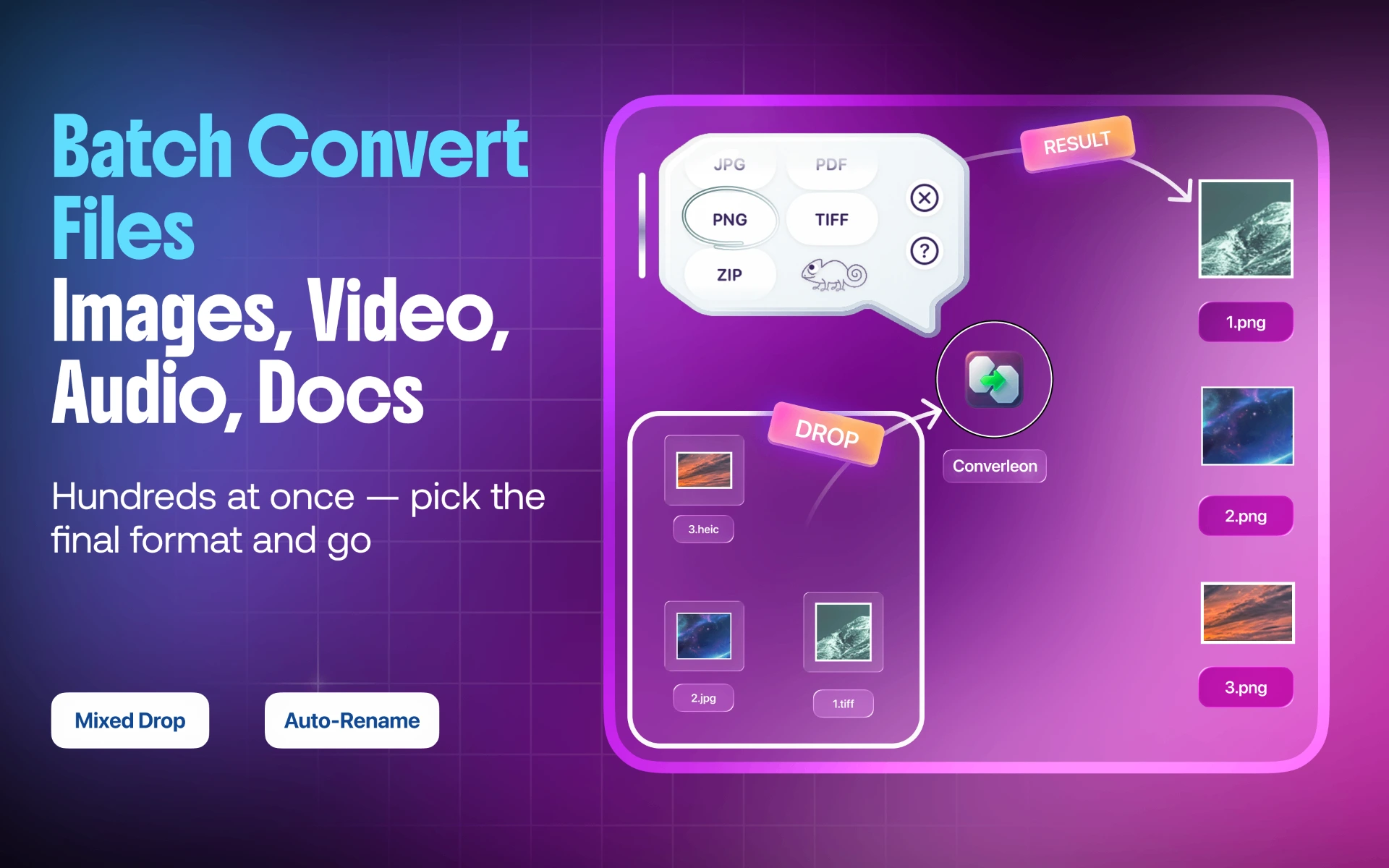
2. Pick a target format. Converleon recognizes the input and offers the relevant outputs — PNG or JPG for a WEBP, JPG or PNG for a HEIF, PDF for an HTML page.
3. Done. The converted file saves locally to your Mac.
What you can do with each
- WEBP → PNG or JPG. The quickest fix for a web image that won't open in older editors or upload to a form. For a step-by-step walkthrough of just that conversion, see converting WEBP to PNG on Mac.
- HEIF / HIF → JPG or PNG. Bring stray HEIF-family files into line with whatever expects standard images.
- HTML / HTM → PDF. Turn a saved web page or exported report into a clean, shareable PDF — converting HTML to PDF covers this one in full.
Where these fit
The new formats plug into the workflows you already use. A WEBP can go through the same HEIC-to-PNG path as iPhone photos. An HTML file can join a mixed PDF merge — documents convert to PDF first, then fold into the combined file. And HEIF images work with Remove BG and compression like any other image.
Two things people get wrong
- Assuming WEBP is stuck. It isn't anymore — one drop turns it into a PNG or JPG that opens anywhere.
- Treating HEIF as identical to HEIC. They're close but not the same; converting to JPG or PNG removes the guesswork when a tool only wants standard formats.
FAQ
Can I convert WEBP to PNG? Yes. Drop the WEBP and choose PNG (or JPG) — it's a standard conversion now.
What can HEIF and HIF files become? JPG or PNG, which covers the tools and forms that don't accept HEIF directly.
Can I turn an HTML file into a PDF? Yes. HTML and HTM are supported document inputs and convert to PDF.
Do the new formats work in merges and other actions? Yes. Images feed into conversion, compression, and Remove BG; HTML documents convert to PDF and can join a mixed merge.
Wrapping up
The formats that used to need a workaround now just drop in. WEBP to PNG, HEIF to JPG, HTML to PDF — same offline, two-click routine as everything else in Converleon. If you're converting iPhone photos alongside them, the HEIC-to-PNG guide covers that side.
Download Converleon for Mac — convert WEBP, HEIF, and HTML offline.