Images
How to Remove Image Backgrounds on Mac (Offline, Transparent PNG)
You need a clean cutout — a product shot on white, a headshot for a profile, a logo with no box around it. macOS has a built-in Remove Background Quick Action, but it works one image at a time and tends to leave ragged edges when the subject and background share colors. Online removers do a tidier job, except they want you to upload the photo first.
Converleon now removes backgrounds locally with the new Remove BG action. It finds the main subject, lifts it off the background, and saves the result as a transparent PNG — all on your Mac, nothing uploaded.
Remove a background and keep it transparent
The output is a PNG with a real alpha channel, so the subject drops cleanly onto any background in Canva, Keynote, or a design tool. No white box, no halo.
What you need
- A Mac on macOS 14 or later (Remove BG needs Sonoma)
- Converleon from the App Store
- The images you want to cut out
Step by step
1. Drop your image. Drag one photo — or a whole selection — onto the Converleon icon. Mixed image formats in one drop are fine.
2. Choose Remove BG. Pick the Remove BG action in the bubble. Converleon detects the foreground subject and separates it from the background.
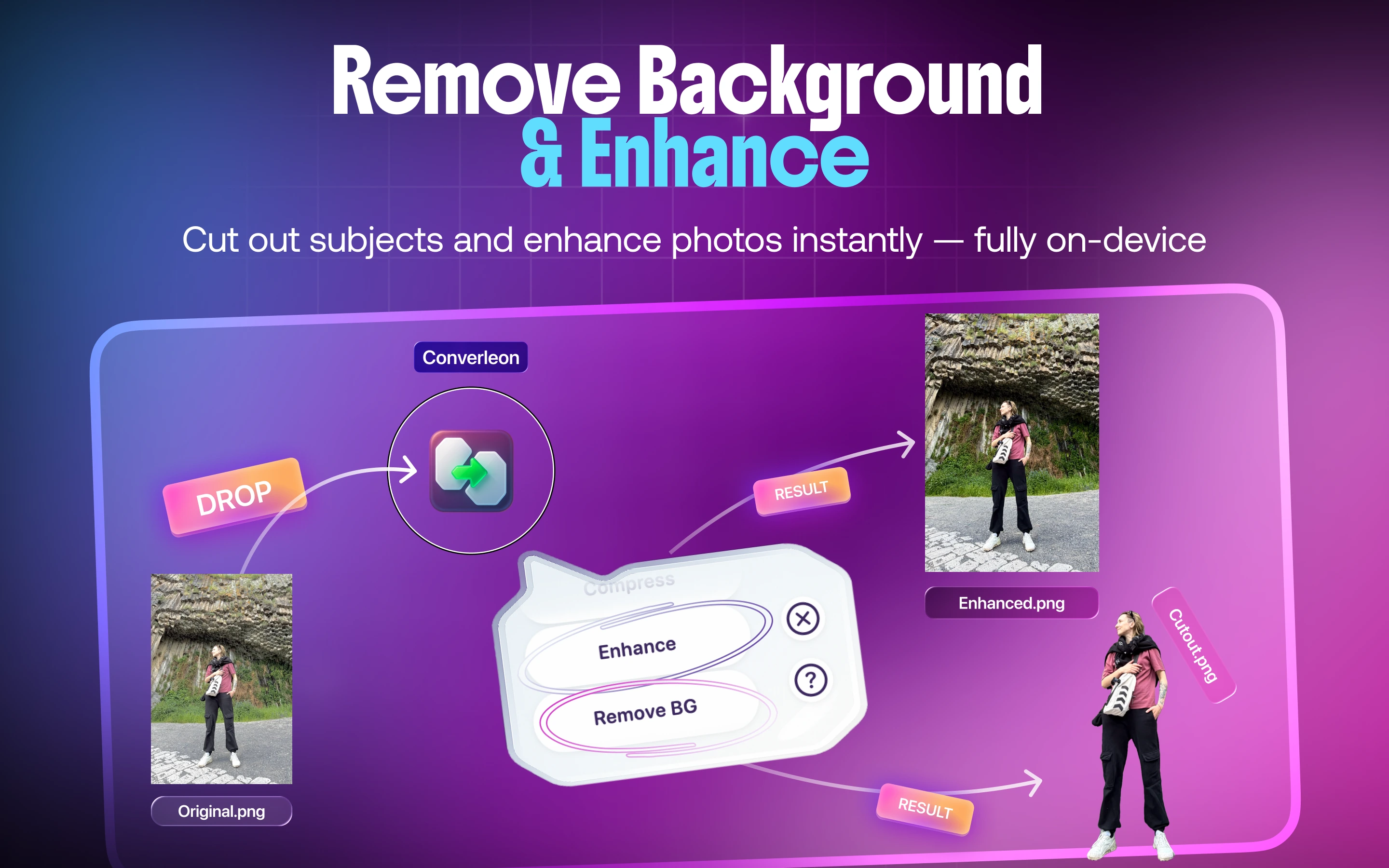
3. Done. The transparent PNG saves next to the original, ready to drop onto a new background.
If there's no clear subject: Remove BG needs something obvious in the foreground to work with. When the image doesn't have one, Converleon shows a prompt rather than handing you an empty file.
Where this fits
Background removal slots into the same offline workflow as the rest of the app. A common sequence: convert iPhone HEIC photos to PNG first, then run Remove BG on the result. Because everything stays on your Mac, product shots and portraits never touch a server — the local-only approach that runs through Converleon.
Two things people get wrong
- Saving as JPG and losing the transparency. JPG can't hold an alpha channel, so the background comes back as white. Remove BG outputs PNG for exactly this reason.
- Reaching for a web remover by habit. Uploading client product photos or personal portraits to a free site is avoidable risk when the same cutout happens locally in a click.
FAQ
What format does Remove BG save? A transparent PNG, every time, so the alpha channel survives.
Which macOS version do I need? macOS 14 (Sonoma) or later for the Remove BG action specifically.
Can I remove backgrounds from several images at once? Yes. Drop a selection and Remove BG processes them together.
What happens with a busy or subject-less image? Converleon prompts you instead of producing a blank result, so you don't end up with an empty PNG.
Wrapping up
A clean cutout shouldn't mean a subscription or an upload. Drop the image, pick Remove BG, and you have a transparent PNG on your drive. If you also want the photo to look its best before cutting it out, the built-in Enhance tool handles color and contrast in the same app. And if you're specifically after a transparent background, that guide focuses on the format side of it.
Download Converleon for Mac — remove backgrounds offline, save transparent PNGs.