Media Compression
How to Reduce Photo File Size on Mac (Offline)
An email bounces a photo for being too big. An upload form caps you at a few megabytes. A folder of high-resolution shots is quietly filling your drive. The fix is making the photos smaller — and on a Mac you can do it without uploading a single one.
Converleon shrinks photos locally, either with a compression preset or by converting to a lighter format. Your originals stay where they are.
Two ways to make a photo smaller
There's no one right method — it depends on whether you want to keep the format or not:
- Compress it. Keep the same kind of file but reduce its weight with a preset. Quickest when the format is already fine.
- Convert it. Move a heavy PNG photo to JPG, which is dramatically smaller for photographic images.
What you need
- A Mac on macOS 13.5 or later
- Converleon from the Mac App Store
- The photos you want to shrink
Option 1: compress with a preset
1. Drop the photos onto Converleon. Select a whole folder if you like.
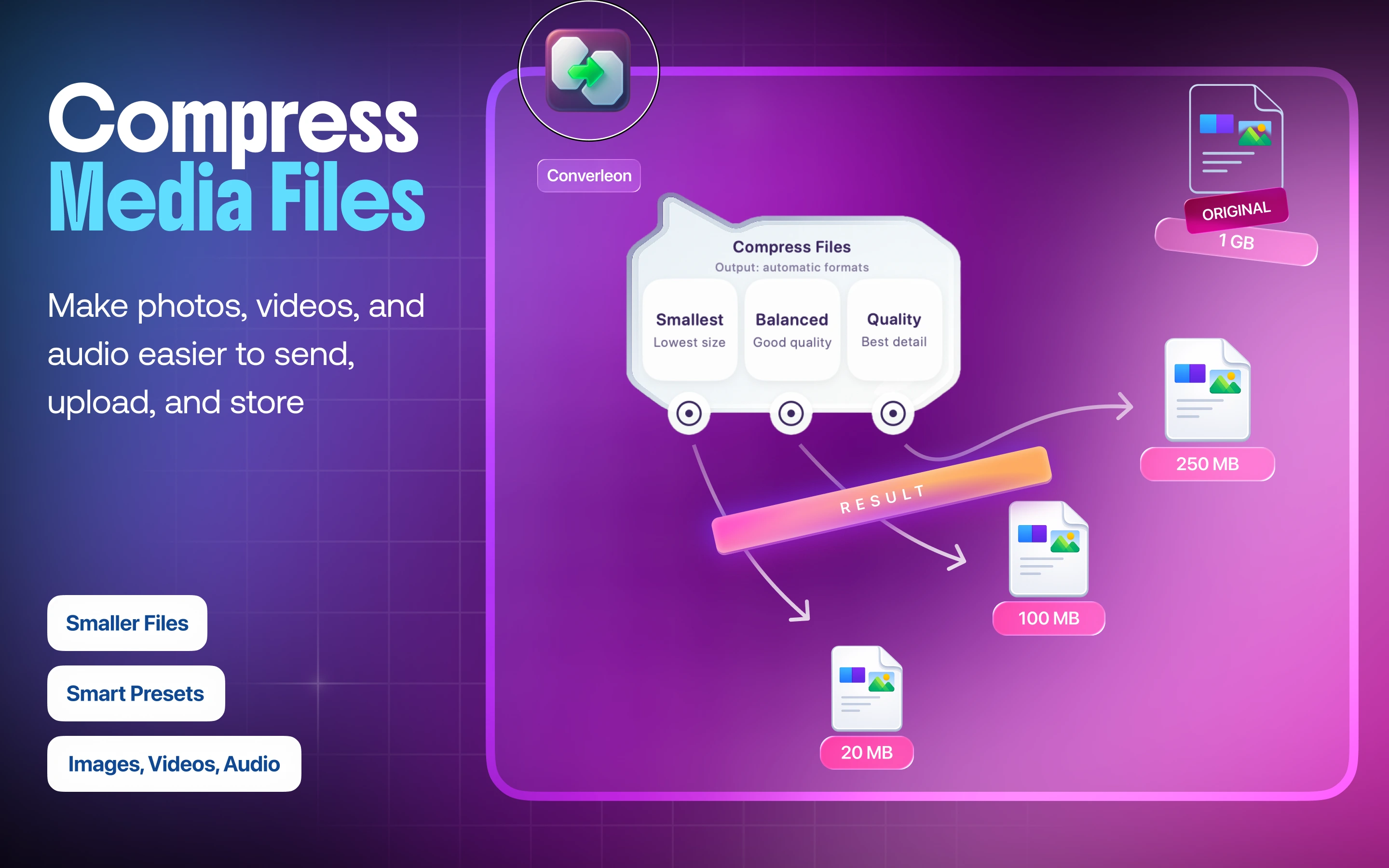
2. Choose Compress. Pick Smallest for the leanest file, Balanced for everyday use, or Quality to keep detail while still trimming size.
3. Done. The smaller photos save locally and the originals are untouched. There's a full breakdown of the presets in the compression guide.
Option 2: convert to a lighter format
If the photos are PNGs, converting them to JPG alone can cut the size sharply, since JPG is far more efficient for photographic content. Converting PNG to JPG is the route there.
Why do it locally
The biggest photos are the ones you least want to upload twice — once to shrink, once to actually send. Local processing skips that and keeps personal shots on your device, the same reasoning behind the rest of the app.
Reduce photo size FAQ
What's the fastest way to shrink a photo? A compression preset — drop the photo, choose Compress, pick Smallest or Balanced.
Will compressing ruin the quality? Smallest is best for quick, disposable sends; Balanced or Quality keep photos looking right while still cutting size.
Does it overwrite my original? No. Converleon writes a new, smaller file and leaves the original alone.
Should I compress or convert? Compress when the format is fine; convert PNG photos to JPG when you want the biggest size drop.
Wrapping up
Making a photo smaller doesn't need an upload or a subscription — a preset or a format change does it in a click, on your Mac. For the full set of compression options across images, video, and audio, see the compression guide.
Download Converleon for Mac — shrink photos offline.