PDFs & Documents
Merge PDF on Mac: Combine Word, Images & PDF Files
A contract in Word, a scanned page as a JPG, a cover letter already in PDF — and you need one clean document to send. The tedious route is converting each piece to PDF first, then stitching them together. You can skip that entirely.
Converleon merges mixed file types straight into a single PDF, on your Mac, without a round trip to a server. It's the right tool when you're assembling an application packet, a legal bundle, or an internal report out of whatever formats happened to land on your desk.
Merge mixed files into one PDF on macOS
No intermediate conversions. Instead of turning each Word file and image into a PDF by hand, drop the whole mix and let Converleon assemble the final document.
What you need
- Converleon for Mac
- A mix of files: PDF, Word (DOCX/DOC), RTF, TXT, HTML, or images (JPG, PNG, HEIC, HEIF, WEBP, TIFF, and more)
Step by step
The whole point here is treating different file types as one batch headed for one PDF.
1. Drop everything at once. Select your Word files, scans, and PDFs together and drag them onto the Converleon icon. The action bubble opens for the mixed selection — no pre-converting required.
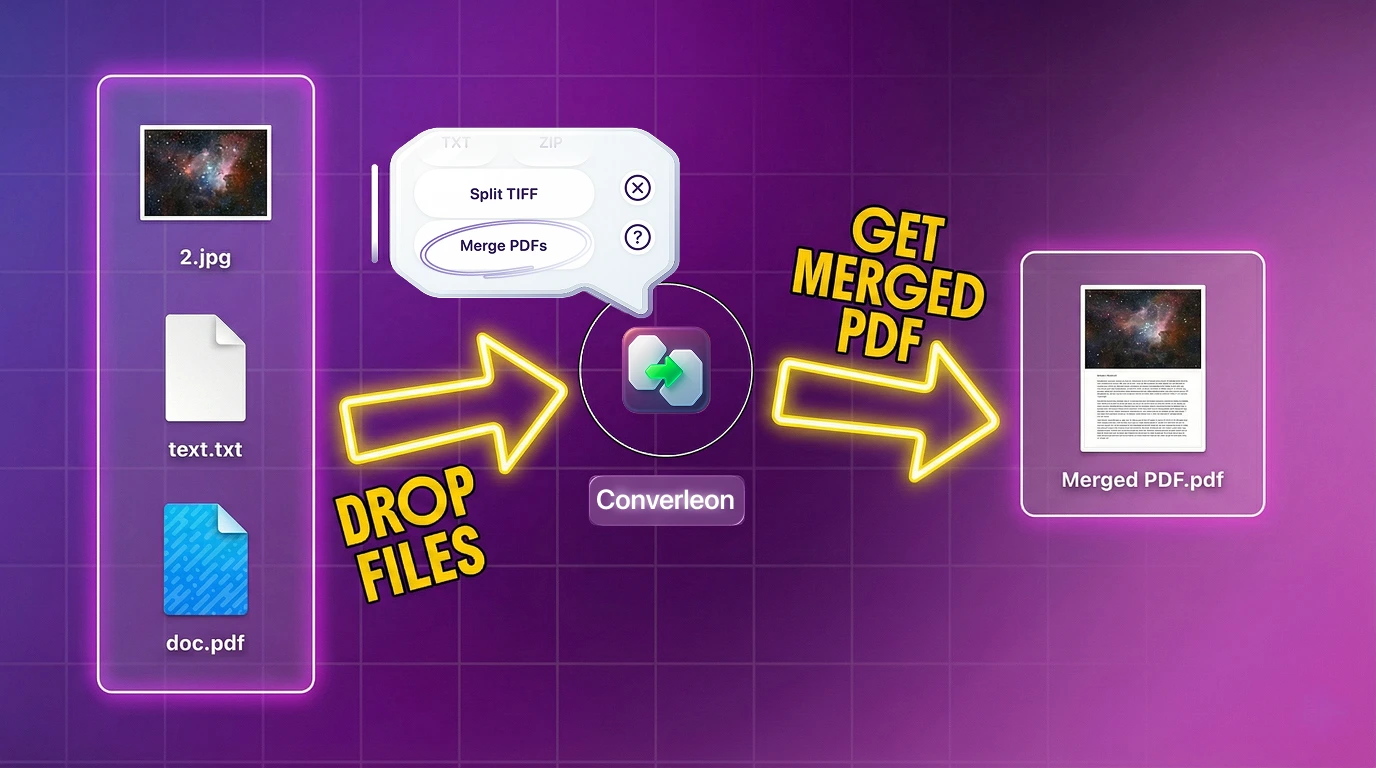
2. Choose Merge PDF. Pick the Merge PDF action instead of setting an output format for each file.
3. Done. Converleon combines everything supported into one multipage PDF and saves it. Anything it can't read gets skipped so the batch keeps moving.
How the merge actually handles each type
A recent update made the merge smarter about mixed input, and it's worth knowing what happens under the hood:
- PDFs are added page by page, in order.
- Images each become their own PDF page — JPG, PNG, GIF, HEIC, HEIF, HIF, BMP, WEBP, TIFF are all fair game. If images are all you're combining, turning images into a PDF covers that case on its own.
- Documents (DOCX, DOC, RTF, TXT, HTML, HTM) are converted to PDF first, then folded in. Saved web pages work too — see converting HTML to PDF.
- Mixed batches with an unsupported file don't fail — Converleon drops that one item and merges the rest.
DOCX keeps its images and layout well through the merge. DOC is older and may come through as a text document with some formatting lost.
Two things people get wrong
- Waiting on uploads. Web-based mergers need you to send contracts and financial files to a remote server — slower, and a problem under most internal security policies. There's more on that in why offline converters win.
- Assuming formatting breaks. It mostly doesn't. DOCX and image formatting survive the merge; only legacy DOC is the soft spot.
FAQ
Can I split a PDF back into images later? Yes. Drop a PDF into Converleon and export the pages as JPG, PNG, HEIC, or TIFF — covered in exporting PDF pages to images.
Is there a file-size limit? No. Converleon runs locally, so you're not capped by a server's upload limit.
Which document formats can go into a merge? DOCX, DOC, RTF, TXT, HTML, and HTM, alongside PDFs and the common image formats.
Wrapping up
One report shouldn't need three apps to assemble. Drop the mix, pick Merge PDF, and the sensitive files never leave your drive. If you need to pull a finished PDF back apart, splitting it into pages is the same kind of two-click job.
Get Converleon on the App Store — combine Word, images, and PDFs in two clicks.