Audio & Video
How to Convert M4A to WAV on Mac (Batch & Offline)
M4A is a fine format for listening — it's compact and plays everywhere on Apple devices. It's a worse fit for editing. Audio tools like Logic, Audacity, and Premiere are more predictable with WAV, which is uncompressed and doesn't re-decode every time you cut, stretch, or process it.
Converleon converts M4A to WAV on your Mac, in batches, with nothing uploaded.
Why editors prefer WAV
WAV is raw audio: no compression to undo, no quality lost on each save, consistent behavior across editing software. That makes it the safe working format whether the M4A came from a download, a recording app, or an extracted soundtrack.
What you need
- A Mac on macOS 13.5 or later
- Converleon from the Mac App Store
- Your M4A files
Step by step
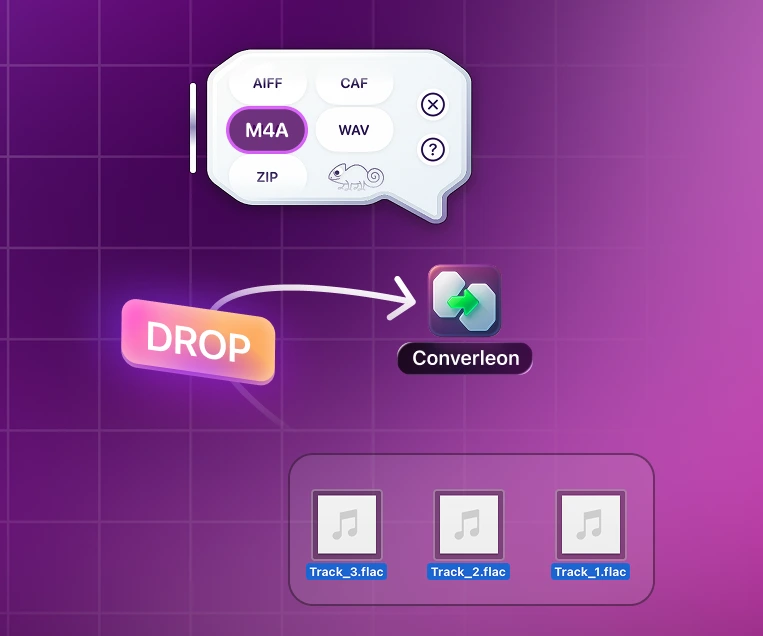
1. Select the M4A files in Finder. One long file or a batch of clips.
2. Drop them onto Converleon. The format options appear.
3. Choose WAV. New WAV files land beside the originals, ready to edit.
Don't just rename the extension
Renaming .m4a to .wav in Finder doesn't convert anything — it produces a file that may not open. You need a real re-encode to get valid WAV audio, which is exactly what a conversion pass does.
Where this fits
If your M4A specifically came from iPhone Voice Memos, the voice-memos-to-WAV guide covers that iCloud-and-AirDrop workflow in detail. And if the audio is still trapped inside a video, extract the audio track first, then take it to WAV.
M4A to WAV FAQ
Why convert M4A to WAV? WAV is uncompressed and predictable in editing software, which makes cuts and processing cleaner than working from a compressed M4A.
Can I convert several files at once? Yes. Batch conversion is built in.
Does it work with long recordings? Yes. There's no length limit, so full lectures and interviews convert the same way.
What other audio formats are supported? M4A, AIFF, CAF, WAV, FLAC, and MP3 as inputs; M4A, AIFF, CAF, WAV, and FLAC as outputs.
Wrapping up
For editing, WAV beats M4A on predictability, and converting locally keeps private audio off any server. If your source is an iPhone recording or a video file, the voice memos and extract-audio guides pick up those specific cases.
Download Converleon for Mac — convert M4A to WAV offline.