Images
HEIC File Won't Open on Mac? Here's the Fix
Usually a HEIC file opens fine on a Mac — it's Apple's own format, previewed natively. The trouble starts when you try to *use* it somewhere else: a Windows colleague can't view it, an upload form rejects it, an older editor refuses it, or an app throws an error on a file that looks perfectly normal in Finder.
The reliable fix is to convert the HEIC to a format everything understands — JPG or PNG. Converleon does that on your Mac in two steps, with nothing uploaded.
Why HEIC causes trouble
HEIC saves space, which is why iPhones use it, but that efficiency comes at the cost of reach. Plenty of software — especially on Windows or older systems — was built before HEIC existed and never added support. The image isn't broken; it's just in a format the other tool doesn't speak.
What you need
- A Mac on macOS 13.5 or later
- Converleon from the Mac App Store
- The HEIC file you're trying to use
The fix, step by step
1. Select the HEIC file in Finder. Or a whole batch of them.
2. Drop it onto Converleon. The format options appear.
3. Choose JPG or PNG. The converted file saves beside the original and opens anywhere.
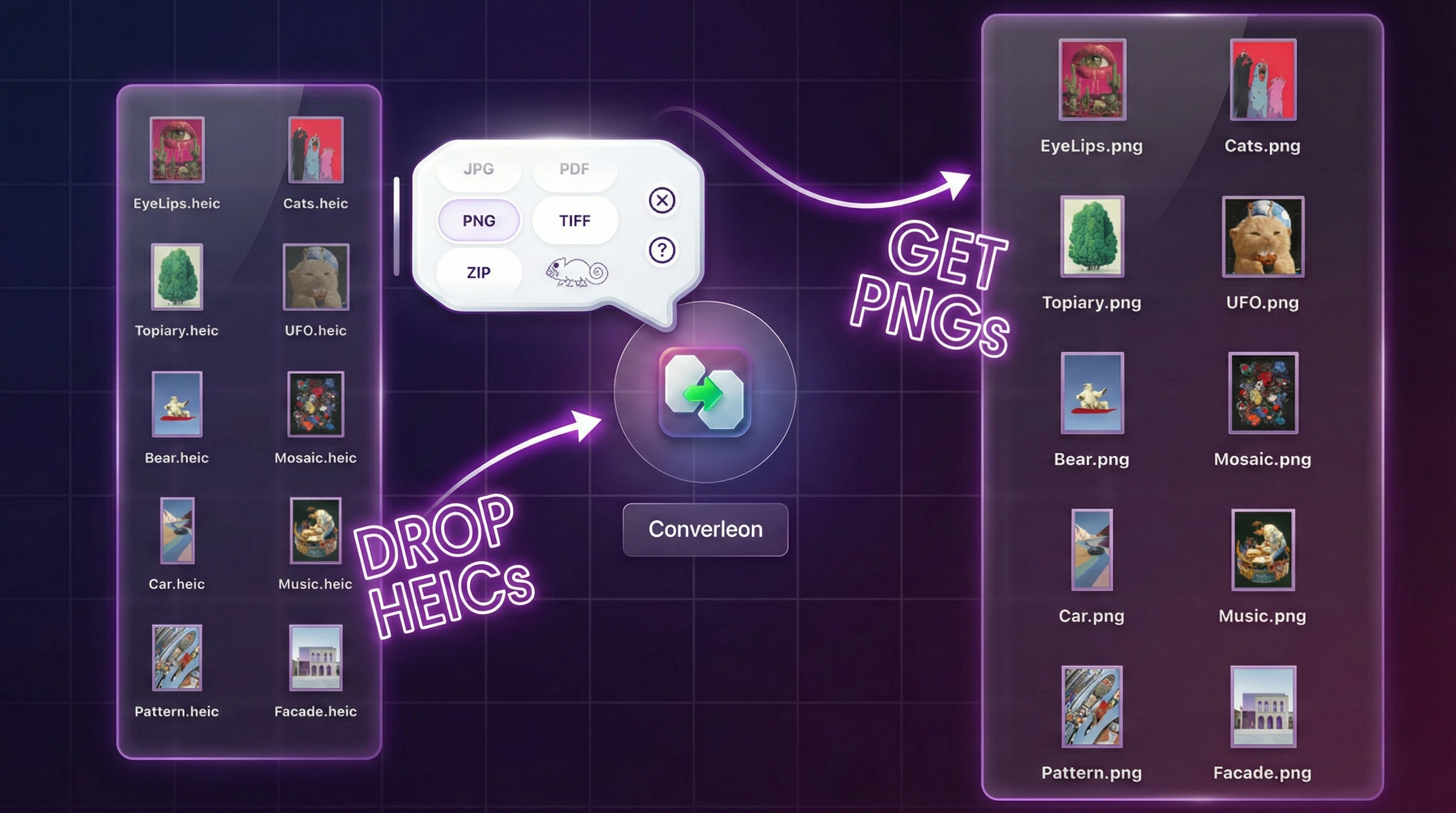
JPG or PNG for the fix?
For photos — which most HEIC files are — go with JPG: smaller, universally accepted, no visible quality loss. Pick PNG if you need transparency or lossless graphics. The full walkthroughs are in HEIC to JPG and HEIC to PNG.
Stop new photos saving as HEIC
If you'd rather avoid the problem at the source, your iPhone can shoot JPG directly: Settings → Camera → Formats → Most Compatible. You'll still have a backlog of existing HEIC files to convert, but new photos will arrive ready to share.
HEIC won't open FAQ
Why won't my HEIC file open elsewhere? The file is fine — the other app or device just doesn't support HEIC. Converting to JPG or PNG resolves it.
What format should I convert to? JPG for photos, PNG for graphics or transparency.
Can I fix a whole folder at once? Yes. Batch conversion handles many files in the same two steps.
Does converting upload my photos? No. It all happens locally on your Mac.
Wrapping up
A HEIC that won't cooperate isn't damaged — it's just speaking a language the other tool doesn't. Convert it to JPG or PNG locally and it opens anywhere. The format-specific guides, HEIC to JPG and HEIC to PNG, cover each path in full.
Download Converleon for Mac — convert HEIC files so they open anywhere.