Images
HEIC to PNG on Mac: Batch Convert iPhone Photos (Offline & Fast)
You copied a batch of iPhone photos to your Mac, opened an upload form, and it bounced every file. The photos preview fine in Finder, so the rejection feels random — but it's almost always the format. iPhones save as HEIC, and plenty of forms and older editors still only accept PNG or JPG.
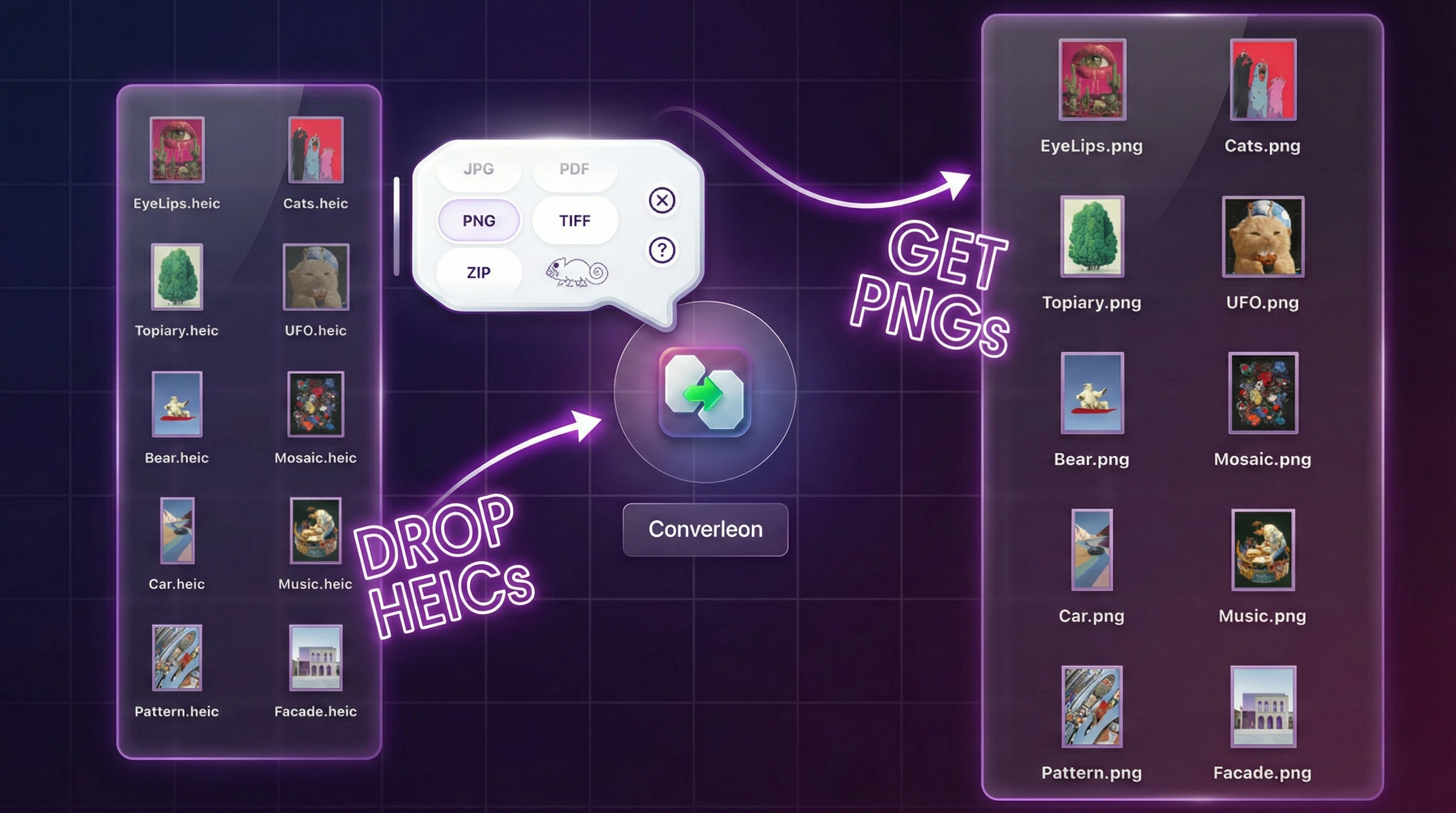
The slow fix is opening each image in Preview and exporting it one at a time. The fast one is converting the whole selection in a single pass. Converleon does the second: drop the files, pick PNG, and the converted images land next to the originals. Everything runs on your Mac, so the photos never leave the device.
Batch convert HEIC to PNG on Mac without quality loss
There's no need to touch each image individually. Select as many HEIC files as you want and convert them together, with PNG or JPG out the other side.
Why HEIC files get rejected on upload
HEIC saves space, which is why Apple defaults to it. The trade-off is reach: registration forms, job portals, and legacy photo editors were built around PNG and JPG and never added HEIC support. So a photo that displays perfectly on your Mac still fails the moment a website checks the file type.
What you need
- A Mac on macOS 13.5 or later
- Converleon from the App Store
- A folder of HEIC images
Step by step
Converleon handles one file or several hundred the same way.
1. Drop your files. In Finder, select the HEIC images you want — multi-select as many as you like — and drag the selection onto the Converleon icon at the top of the app. The format bubble appears.
2. Pick PNG. Choose PNG (or JPG) in the bubble. Converleon already knows these are images.
3. Done. Conversion runs on your machine right away. The new PNG files show up in the same folder as the originals, or in whatever output folder you set.
Tip: Drops can be mixed. If a stray music file ends up in your photo selection, Converleon skips it and converts only the images.
Two things people get wrong
- Trusting random web converters. Uploading personal photos to the first site in the search results hands your images to a server you know nothing about. Converleon stays offline — there's a fuller breakdown in why offline file converters beat web tools.
- Re-compressing over and over. PNG is lossless, so a HEIC→PNG conversion keeps the image sharp instead of degrading it the way repeated JPG saves do.
FAQ
Can I convert HEIC to JPG instead? Yes. Converleon exports HEIC to JPG, PNG, BMP, TIFF, and PDF — the HEIC to JPG guide covers when JPG is the better choice.
Does the conversion change the photo's quality? No. The output is a fresh file in a new format; the visible image stays intact.
What about newer formats like HEIF? Those work too — Converleon added WEBP, HEIF, and HIF as inputs in a recent update. See the supported-formats guide. The same goes for web images — converting WEBP to PNG is the matching guide.
Wrapping up
Moving iPhone photos onto a Mac shouldn't turn into busywork. Select the files, pick a format, and you have upload-ready PNGs without sending a single photo to the cloud. If you also need transparent cutouts rather than flat PNGs, removing image backgrounds locally is now built in too.
Download Converleon for Mac — batch-convert iPhone photos offline.