Images
How to Convert HEIC to JPG on Mac (Batch & Offline)
JPG is the format that goes everywhere — email, web uploads, Windows machines, print labs, apps built any time in the last thirty years. HEIC, the format your iPhone shoots in, still isn't on that list. So when you're sharing photos rather than storing them, JPG is usually the one you want.
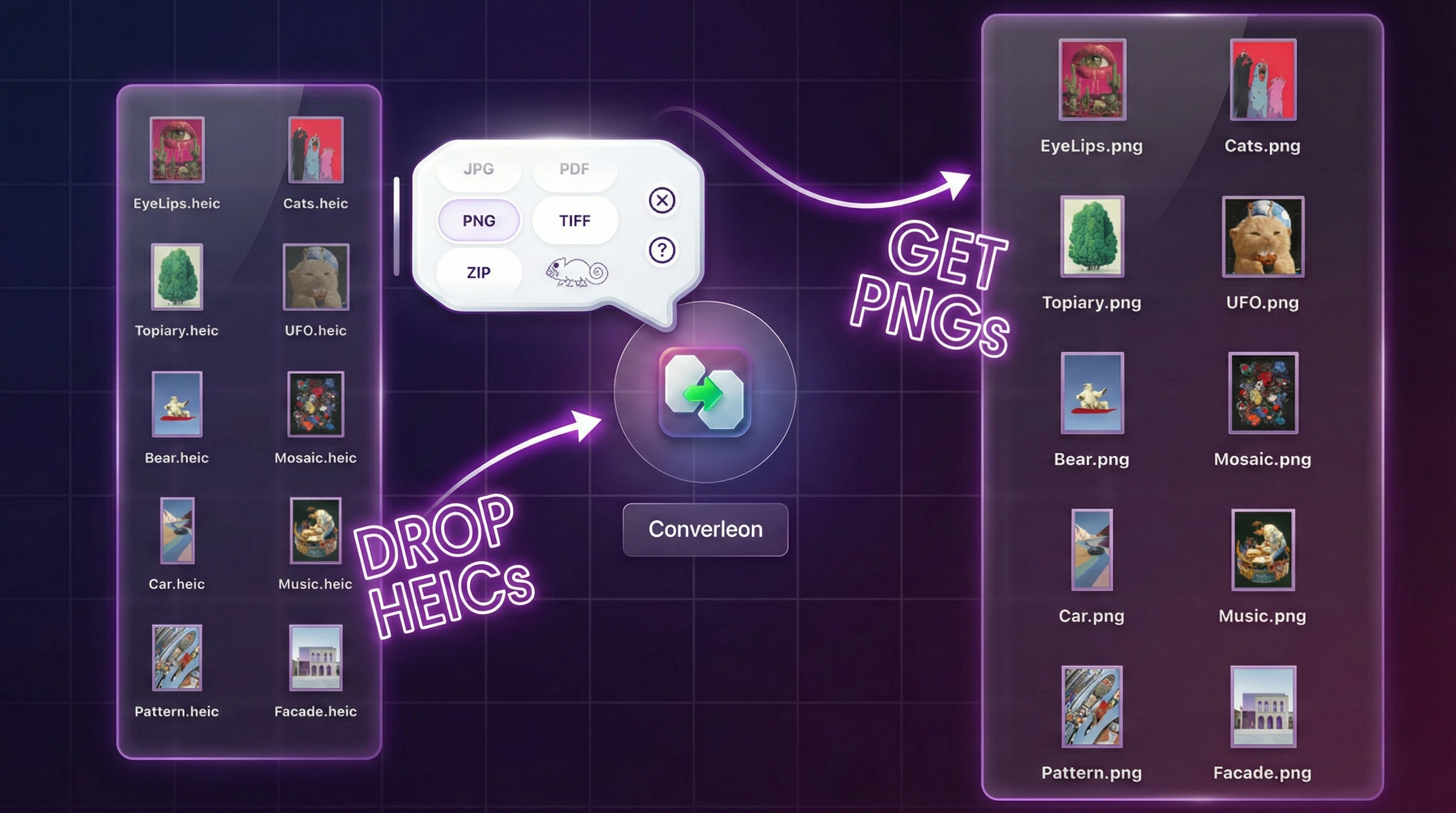
Converleon converts HEIC to JPG on your Mac, in a batch, with nothing uploaded. Drop the photos, pick JPG, done.
JPG or PNG — which should you pick?
For photographs, JPG is almost always the better call: the files are far smaller and there's no visible quality loss at normal settings. PNG earns its place with screenshots, graphics, and anything that needs transparency. If your shots are camera photos, JPG; if they're graphics, convert HEIC to PNG instead.
What you need
- A Mac on macOS 13.5 or later
- Converleon from the Mac App Store
- A folder of HEIC images
Step by step
1. Select your HEIC files in Finder. Multi-select as many as you like.
2. Drop them onto Converleon. The format bubble appears once the images are recognized.
3. Choose JPG. The new JPG files are written beside the originals.
Why convert locally
Photos are personal, and a free web converter means handing them to a server you don't control — some are ad-heavy, a few are worse. Converting on your Mac keeps every shot on the device, which is the whole case for offline tools.
HEIC to JPG FAQ
Does the photo lose quality? At normal JPG quality the difference isn't visible in photographs, and the file ends up much smaller than the HEIC.
Can I convert hundreds at once? Yes. Batch conversion is built in — a full camera roll is the same two steps as a single photo.
Should I pick JPG or PNG? JPG for photos, PNG for graphics, screenshots, or anything needing transparency. The HEIC to PNG guide covers the other path.
Are the photos uploaded anywhere? No. Everything runs locally on your Mac.
Wrapping up
When iPhone photos need to travel — to a colleague, a form, or a print shop — JPG is the format that just works. Convert the batch locally and the originals stay put. If you'd rather keep them lossless or need transparency, HEIC to PNG is the matching guide.
Download Converleon for Mac — batch-convert HEIC to JPG offline.