Audio & Video
How to Convert FLAC to M4A or WAV on Mac (Batch & Offline)
Your FLAC library refuses to import into Apple Music, or it won't sync cleanly to your iPhone. It's a familiar wall for anyone holding a lossless collection inside Apple's ecosystem. The fix is straightforward: convert to M4A for daily listening, or to WAV when you need something universal for editing.
Converleon does this in offline batches, so you can run whole albums through without uploading gigabytes of audio anywhere.
Why FLAC won't play in Apple Music
FLAC is everywhere in the lossless world, but Apple's apps don't always treat it the way you'd hope. You don't have to install cloud tools or give up quality to work around it. M4A clears up Apple Music and iPhone compatibility fast; WAV hands you an uncompressed file for production.
What you need
- A Mac on macOS 13.5 or later
- Converleon from the App Store
- Your folder of FLAC files
Step by step
Converleon is built for batches, which makes it suited to full albums, discographies, and big sample packs.
1. Drop your audio. Select your FLAC files and drag them onto the Converleon icon.
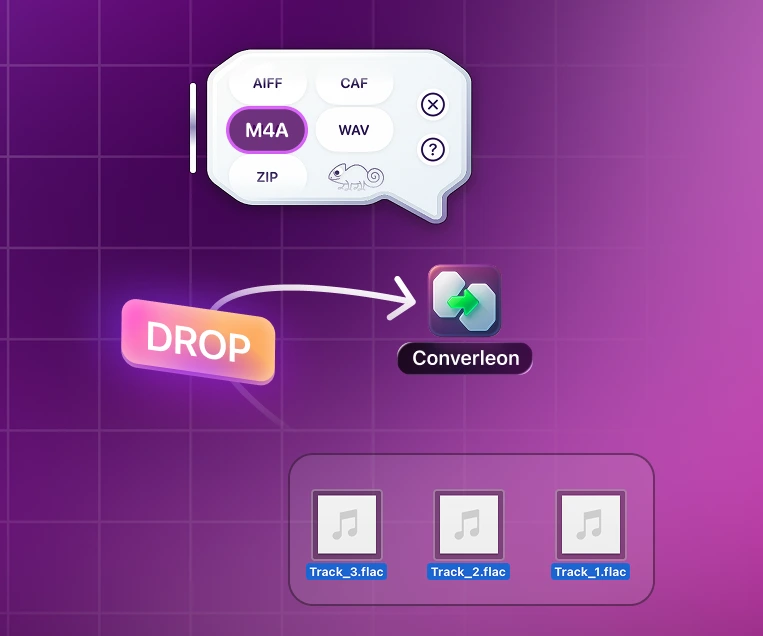
2. Pick your target. Choose by goal:
- M4A — for listening on Mac, iPhone, and iPad with native Apple Music and QuickTime support.
- WAV — for editing in Logic Pro, Final Cut, and other DAWs.
3. Done. Conversion starts immediately and chews through even heavy lossless files quickly.
Why offline matters for big audio
Lossless albums run to hundreds of megabytes. Converting locally skips the long upload, saves bandwidth, and keeps your library on your own drive — the same local-first reasoning behind everything Converleon does.
FAQ
Does FLAC to M4A lose quality? M4A is a native Apple container, and in practice you get high-quality listening with immediate Apple Music and iPhone support.
Can I go the other way, like WAV to FLAC? Yes. Converleon converts both directions across M4A, AIFF, CAF, WAV, FLAC, and MP3 inputs to M4A, AIFF, CAF, WAV, or FLAC.
Can I pull audio out of video files too? Yes. Drop a MOV or MP4 and extract the audio track to M4A or WAV the same way.
Wrapping up
A format mismatch shouldn't break your music setup. Reach for M4A when you want Apple Music playback, WAV when you're editing or need something universal. If your source is an iPhone recording rather than a FLAC file, converting voice memos to WAV is the matching workflow.
Download Converleon for Mac — make your lossless library iPhone-ready, in batches.