Audio & Video
Extract Audio from Video on Mac: MOV to WAV & M4A Offline
You filmed a concert, recorded a lecture, or saved a video memo, and now you only want the sound. Opening a full editor to grab one audio track is overkill. Drop the file, pick an audio format, and export — that's the whole job.
Converleon pulls audio out of MOV and MP4 files on your Mac. Export M4A for everyday playback, or WAV when you want a lossless file to edit later. The original video stays exactly as it was, and the new audio file appears in the same folder.
Get audio out of a MOV or MP4 without an editor
You don't need Final Cut or DaVinci Resolve for a basic extraction. This is a two-click, offline operation.
What you need
- A Mac on macOS 13.5 or later
- Converleon from the App Store
- Your video files (MOV, MP4, M4V)
Why doing it locally matters
Uploading a 2 GB video to a web converter can take ages and exposes your IP and your footage to a stranger's server. The same file processes locally on your Mac in seconds. The case for offline converters goes deeper on this.
Step by step
1. Drop your video. Open Converleon and drag one video — or several — from Finder onto the app icon. Video inputs are detected automatically.
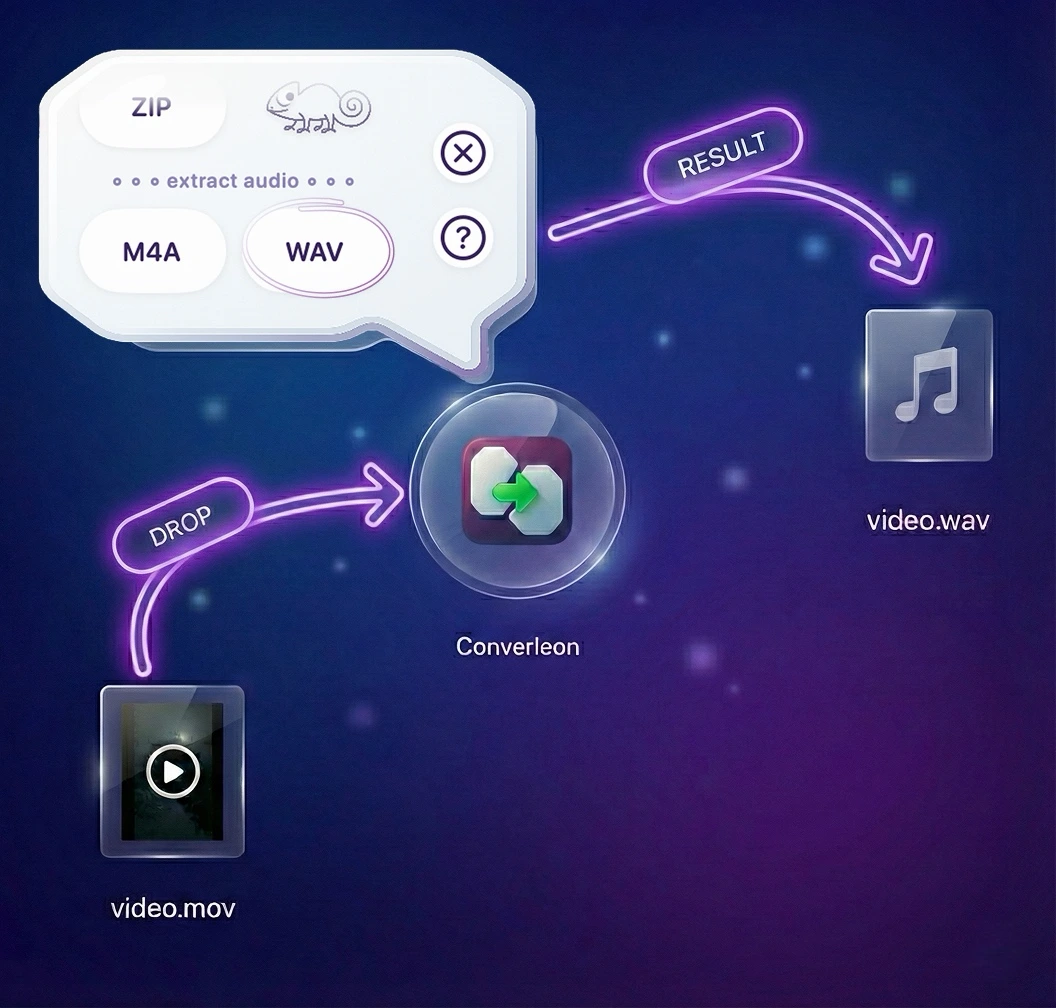
2. Pick your audio format. Once the video lands, the Extract Audio options appear. Choose WAV when editing quality matters, M4A for general playback and voice notes.
3. Done. Extraction runs immediately. The video is untouched and the new sound file sits in the same folder.
Tip: Need FLAC down the line? Drop the extracted WAV back in and convert it — FLAC works as both input and output.
Two things people get wrong
- Renaming the extension. Changing
video.movtoaudio.wavin Finder doesn't convert anything; it just produces a file that won't open. - Sending big files to web tools. Video uploads are heavy and slow. Local processing on Apple Silicon avoids the bandwidth wait entirely.
FAQ
Why isn't MP3 an option? MP3 carries licensing requirements that many independent apps skip to keep prices down. M4A plays everywhere on Apple devices and covers most playback needs.
Can I extract audio from several videos at once? Yes. Drop them together, pick WAV or M4A once, and Converleon batches all of them.
What if I want to edit the audio afterward? Export WAV — it's uncompressed and predictable in Logic, Audacity, and Premiere. If your source is an iPhone recording, converting voice memos to WAV follows the same path.
Wrapping up
Getting sound out of a video doesn't call for a studio editor. Drop the file, pick a format, done — clean audio with no upload wait. If your library is in FLAC instead, converting FLAC to Apple-friendly M4A works the same way.
Download Converleon for Mac — extract audio from video on-device.