Images
How to Auto-Enhance Photos on Mac (Color, Contrast, Red-Eye)
Some photos just need a nudge — the color's a little flat, the contrast is off, someone's eyes went red under the flash. You don't want to open a full editor and start pushing sliders for a quick fix. You want the obvious problems gone and the file saved.
Converleon's improved Enhance does that in one pass. It corrects color, contrast, and red-eye automatically, then saves the result in a format that suits the photo. It's offline, so the images stay on your Mac.
One-click correction, no editor required
Enhance isn't a darkroom. It handles the routine fixes most snapshots need and leaves you with a cleaner file, without a panel of controls to learn.
What you need
- A Mac on macOS 13.5 or later
- Converleon from the App Store
- The photos you want to clean up
Step by step
1. Drop your photos. Drag one image or a batch onto the Converleon icon.
2. Choose Enhance. Pick the Enhance action. Converleon adjusts color and contrast and clears red-eye automatically.
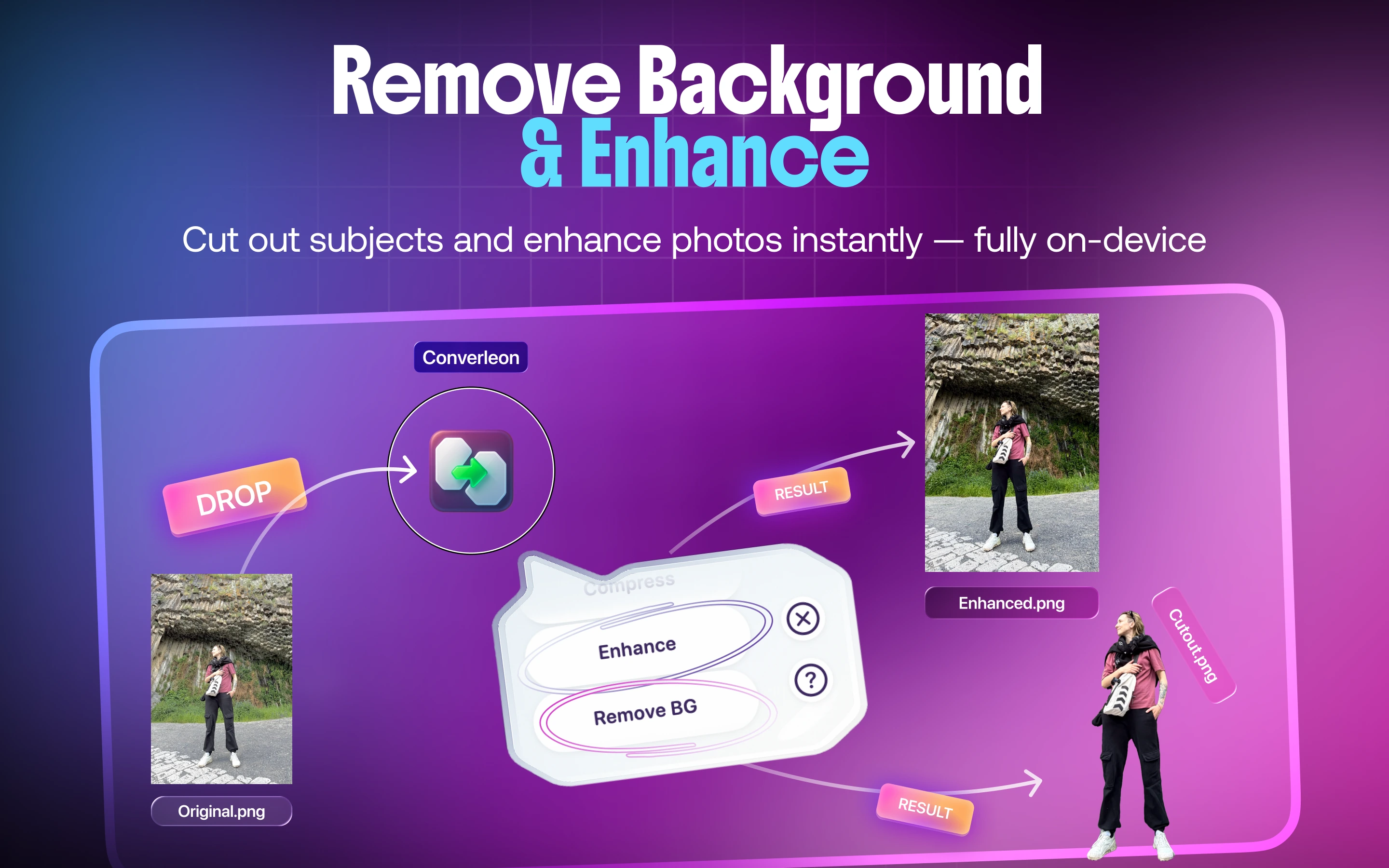
3. Done. The corrected photo saves to your Mac in an optimized format — JPG, PNG, or HEIC, chosen from the source file and whether it has transparency.
How it picks the output format
You don't set the format yourself. Enhance reads the source and saves where it makes sense: PNG when the image carries transparency, HEIC for HEIC-family files, JPG for ordinary photos. The point is a clean result without a format decision on top of it.
Where it fits
Enhance pairs naturally with the other image tools. Clean up a photo, then remove its background for a product shot, or compress it for the web. And because it runs locally, family photos and client images never leave your drive — the offline approach the whole app is built on.
Two things people get wrong
- Expecting heavy retouching. Enhance is automatic correction, not a manual editor — it fixes the common stuff, it won't reshape a composition.
- Running it on an already-edited file. Auto-correction works best on the original. Stacking it on top of edits you've already made can fight your earlier choices.
FAQ
What does Enhance correct? Color, contrast, and red-eye, automatically, in a single pass.
What format does it save to? JPG, PNG, or HEIC, picked from the source file and whether it has transparency.
Can I enhance several photos at once? Yes. Drop a batch and Enhance processes them together.
Is it a full photo editor? No. It's one-click automatic correction for routine problems, not a manual editing suite.
Wrapping up
Most photos don't need an editor — they need three small fixes and a save. Enhance does exactly that, offline, and picks the right format for you. From there, removing the background or converting the format is the same kind of quick job.
Download Converleon for Mac — auto-enhance photos offline in one click.