Media Compression
How to Compress Photos, Videos, and Audio on Mac (Simple Presets)
Email bounces a video for being too big. A folder of photos is eating your drive. An audio file is heavier than it needs to be for a podcast feed. Compression fixes all three, but most tools bury it under bitrate sliders and codec menus that mean nothing unless you do this for a living.
Converleon's new compression tools skip the jargon. Three presets — Smallest, Balanced, Quality — and the app handles the rest, including picking a sensible output format. It runs offline, so nothing gets uploaded to shrink it.
One control instead of a settings panel
You're not choosing a codec or guessing at a bitrate. You're saying how much you care about size versus quality, and Converleon translates that into the right settings for the file type.
What you need
- A Mac on macOS 13.5 or later
- Converleon from the App Store
- The images, videos, or audio you want to compress
Step by step
1. Drop your files. Drag images, videos, or audio onto the Converleon icon. You can compress one type or a mix.
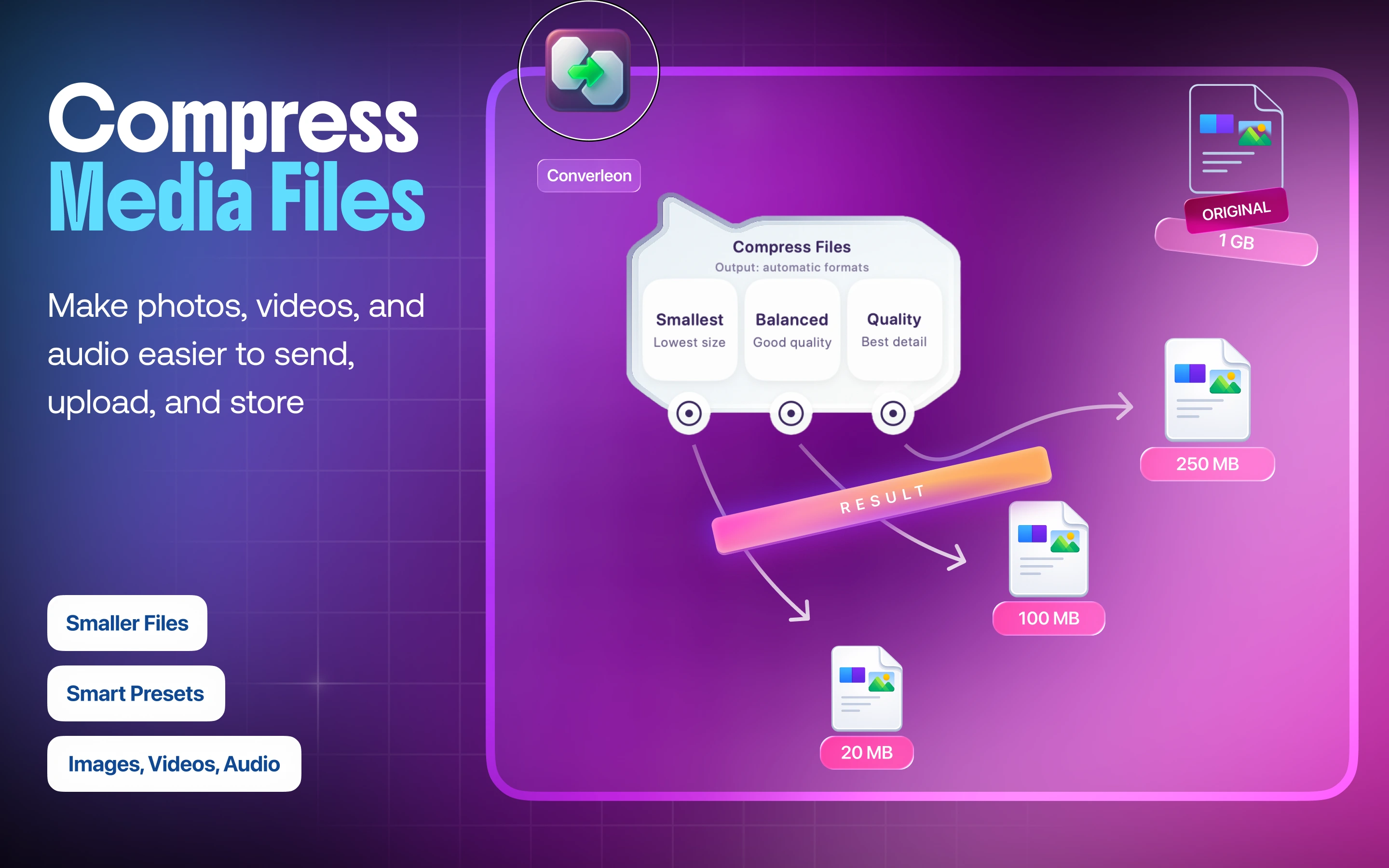
2. Pick a preset. Choose Smallest for the leanest file, Balanced for the everyday middle, or Quality when you want size down but detail mostly intact.
3. Done. Compression runs locally and saves the smaller files to your Mac.
What each file type becomes
The preset is the same idea across media, but the output is tuned to the format:
- Images — Converleon shrinks the file and picks the best output: JPG for ordinary photos, PNG for anything with transparency, HEIC for HEIC/HEIF/HIF sources. If your goal is specifically smaller photos for email or uploads, reducing photo file size walks through it.
- Video — saved as an optimized MP4, the format that plays everywhere. There's a dedicated walkthrough in compressing video on Mac.
- Audio — re-encoded to a more compact M4A, with the bitrate scaled to the preset you chose.
Why compress locally
Big files are exactly the ones you don't want to upload twice — once to compress, once to actually send. Local compression skips that, keeps private footage and photos on your drive, and isn't throttled by your connection. It's the same offline-first reasoning behind the rest of the app.
Two things people get wrong
- Compressing past the point of usefulness. Smallest is great for a quick email; for anything you'll keep or print, Balanced or Quality holds up far better.
- Re-compressing an already-compressed file. Each pass costs quality. Compress from the original where you can, not from a file you already shrank.
FAQ
What do the three presets actually do? Smallest prioritizes file size, Quality prioritizes detail, and Balanced sits between them. Converleon maps each to the right settings per file type.
What format do compressed videos come out as? An optimized MP4, for the widest playback compatibility.
Does image compression keep transparency? Yes. Files with transparency compress to PNG so the alpha channel survives; ordinary photos go to JPG.
Can I compress images, video, and audio in one drop? Yes. Mixed batches work — pick a preset once and Converleon applies it appropriately to each type.
Wrapping up
Compression shouldn't require a degree in codecs. Pick how much you care about size, drop the files, and Converleon does the technical part offline. If you'd rather change a format outright than shrink it — say HEIC to PNG or FLAC to M4A — that's the same drag-and-drop.
Download Converleon for Mac — compress photos, video, and audio with one click.